
 United States
 Canada
 United Kingdom
 Australia
 New Zealand
How to Set Up a Family Calendar Everyone Can Use
Build a shared calendar for school pickups, appointments, activities and household plans, with a paper view for daily use.
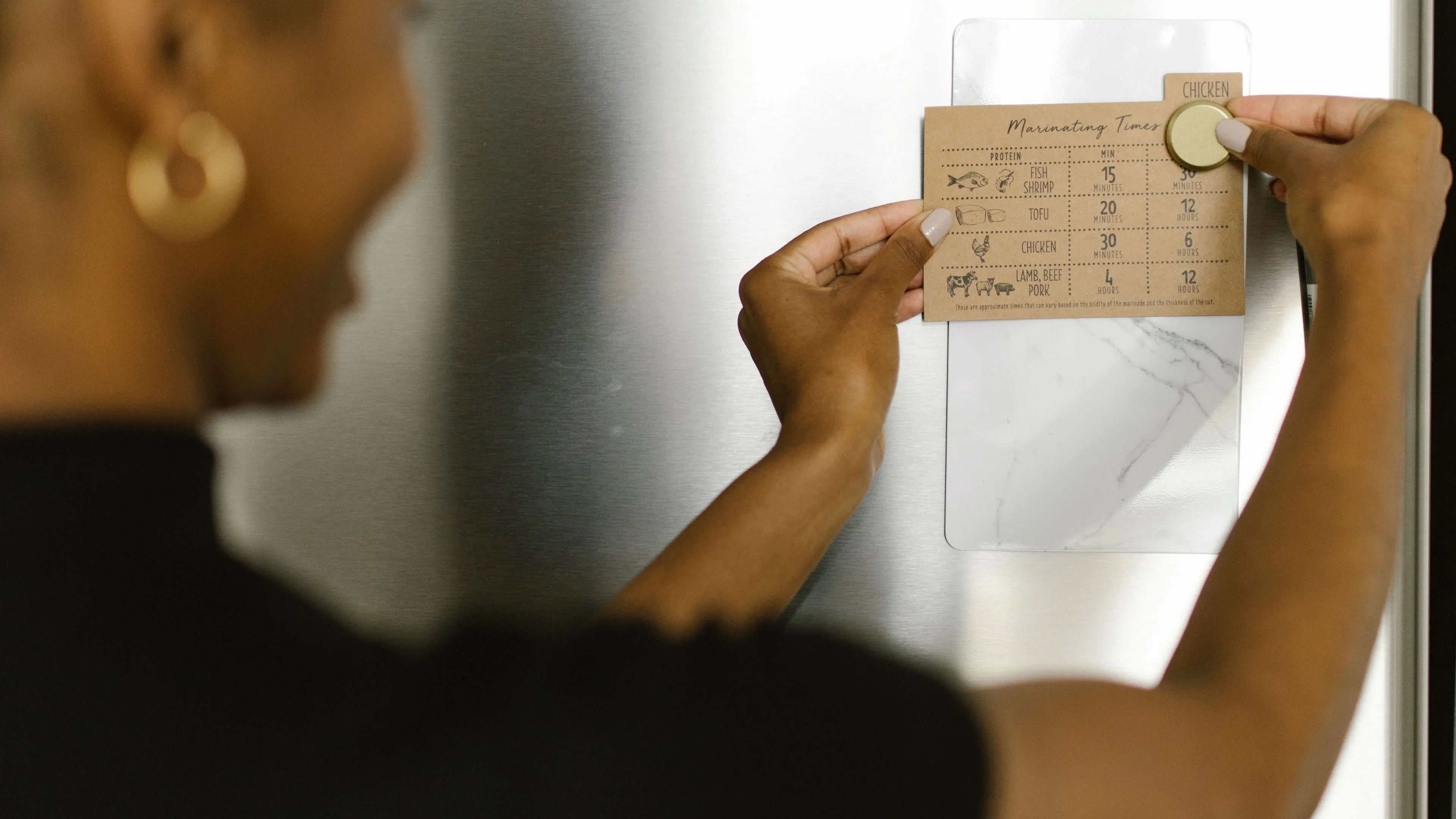
A family calendar works best when it has one trusted place for the latest plan and a short rule for who updates it. Start with the dates that affect more than one person, such as school pickups, appointments, activities, days off and travel. Keep a readable paper view where the household looks for answers, and agree that changes go into the shared record before you update that sheet.
The point of a calendar on the fridge is to answer “Who is doing pickup today?” without a search through old messages. The point of a shared digital calendar is to make a schedule change visible outside the kitchen. Use each view where it has an advantage, and give the family a consistent way to tell which information is current.
Decide what belongs on the shared view
Put events on the family calendar when another person needs to be there, arrange transport, provide care, be available, or plan around the absence. A dentist appointment might need an entry with the time, place and person driving. An adult’s personal reminder to buy batteries can stay on a private list unless someone else is responsible for it.
Break up calendar entries so each one explains an action. “Soccer” alone leaves a reader guessing about departure, pickup and location. “5:10 pm leave for soccer, Jo drives” tells someone exactly what needs to happen. Put the full address and relevant instructions in the shared digital entry when appropriate. Use a compact label on the paper view so it remains legible.
Make all-day entries distinct from scheduled times. A school closure should appear across the day even if a particular person begins covering childcare later. Add that coverage as its own timed item. If two parts of an arrangement are still uncertain, mark them as tentative and agree who will confirm them.
Set permissions before inviting everyone
Use a calendar or shared list that the regular contributors already know how to open. If you choose Google Calendar, you can share a calendar you own with specific people and decide whether they can see events, edit them, or manage sharing. Use the Google instructions for sharing a calendar when setting up access.
People need the minimum information and permissions required to do their part. A grandparent helping with one pickup can receive that event and its address. A regular co-parent may need the whole activity schedule and the ability to update it. Consider what an event title or location reveals when shared outside the home. A paper copy should also avoid sensitive detail if people who do not need to see it regularly pass the board.
Before relying on the system, make one low-stakes event and ask each person to find it. Check whether edits show up on the devices they actually use and whether notification settings work for them. A quiet notification or a visible paper note may suit one person better than a repeating phone reminder.
Give each change an owner
The person who receives a new date can enter it. The person who accepts a responsibility confirms the assignment. For example, a school sends notice that Wednesday pickup moves 30 minutes earlier. Update the Wednesday event, identify the driver, and get confirmation from that person. If the change is close to departure time, send a direct message rather than relying only on a synced update.
Use a short label for the state of a plan. “Proposed,” “confirmed” and “canceled” are enough for most changes. If a canceled event should remain visible so people understand the update, mark it clearly on the paper copy and remove its alarm. When plans are rebooked, show the revised date separately to avoid someone reading the original by mistake.
School dates can be the starting point for this work. Use the school holidays directory to locate the relevant school authority, then mark the days your child is actually away from class. The school holiday planning guide explains how to distinguish term dates from the school’s own closures and early dismissal times.
Build a fridge copy for the questions people ask there
A month grid helps with birthdays, school closures and weekends away. A weekly sheet gives more room to list drivers, times and tasks. Pick one display first and add a second only if it answers a different question. For a household managing several pickups, printing one week at a time can keep the board from becoming crowded.
Use a limited set of labels that remain clear on a monochrome print. Initials and short words work better than expecting everyone to remember a different color for each activity. In a shared appointment, put the driver’s initials first if that is the household’s main uncertainty. Write the date the paper was printed or last updated in a corner.
The blank calendar collection has reusable monthly options, while the weekly planner gives you a seven-day view with more note space. Check whether a Monday-first or Sunday-first layout fits the regular day of your household review.
Keep a ten-minute review on the schedule
Pick a time when the people who do planning can look at the next seven days together. Start with unusual items such as a school closure, an early appointment, or an evening that needs two drivers. Confirm who owns each trip and mark anything that still needs a reply. Then check the following week for forms, bookings, or preparation that need attention now.
A review can end as soon as expectations are clear. If you find that nobody uses a section, remove it on the next print. If an event led to the same question twice, change the way you label it next time. The best test of a shared calendar is whether someone can answer the next practical question without needing to call the person who made the entry.
Related Calendar Guides
All Blog Posts-
 Planning
How to Build a School Holiday Calendar for Your Family
Find the right district, council or term dates and turn official school schedules into a practical childcare and travel plan.
-
 Printing
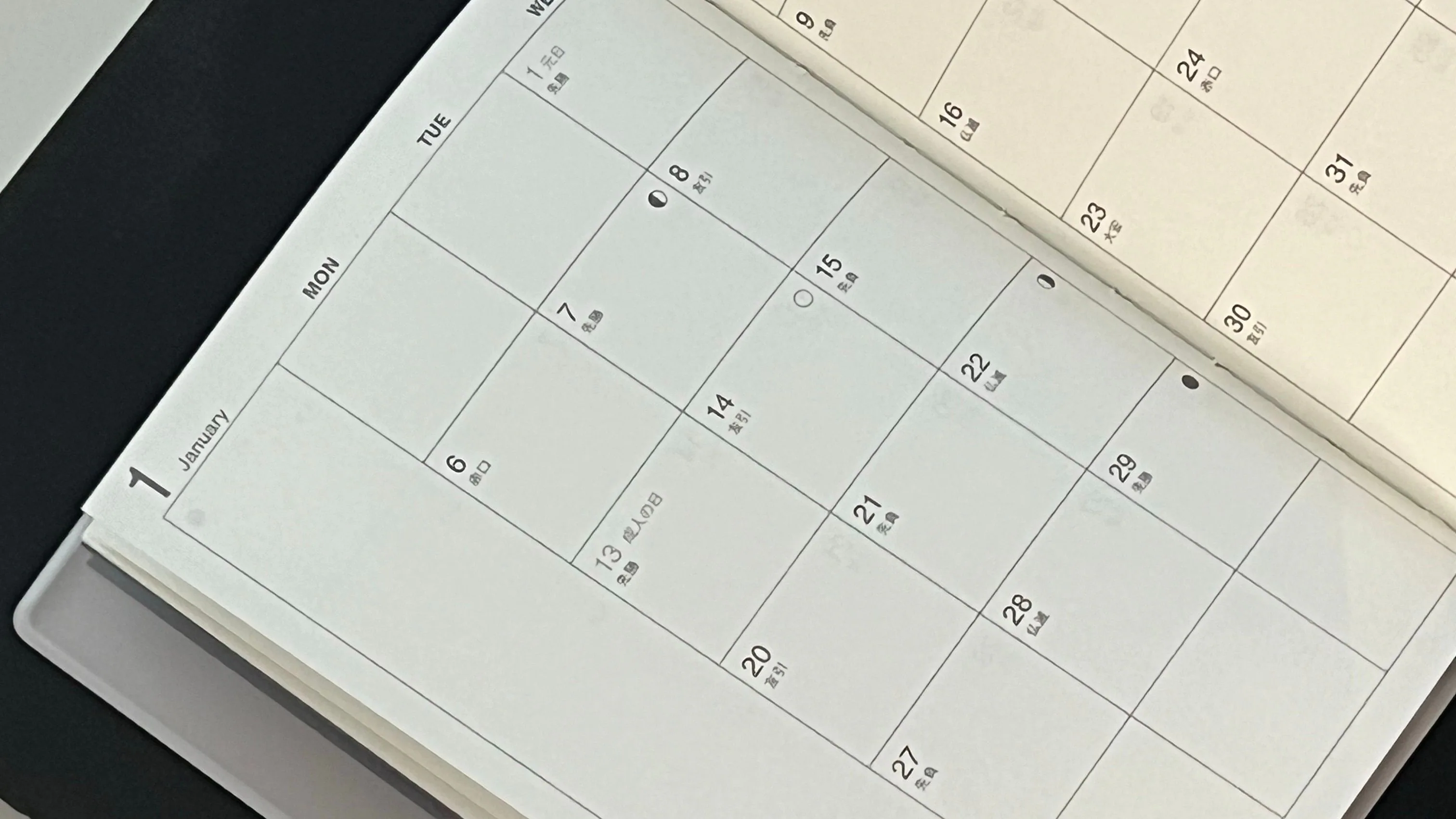
How to Fill In a Blank Calendar Without Running Out of Rows
Number any undated monthly grid, test whether you need five or six rows, and reuse your blank calendar next month.